
Avoma Insider - October 2026 Product Updates

Table of Contents:

Q3 reviews can show where your team needs to improve. Carrying those lessons into Q4 means making time for coaching, staying prepared for customer conversations, and keeping reporting consistent.
October’s updates help make those routines easier to maintain. We’ve focused on reducing manual preparation and giving teams more control over the information behind their coaching, CRM workflows, and forecasts.
Here’s what’s new.
Get Ask Avoma reports delivered daily or weekly
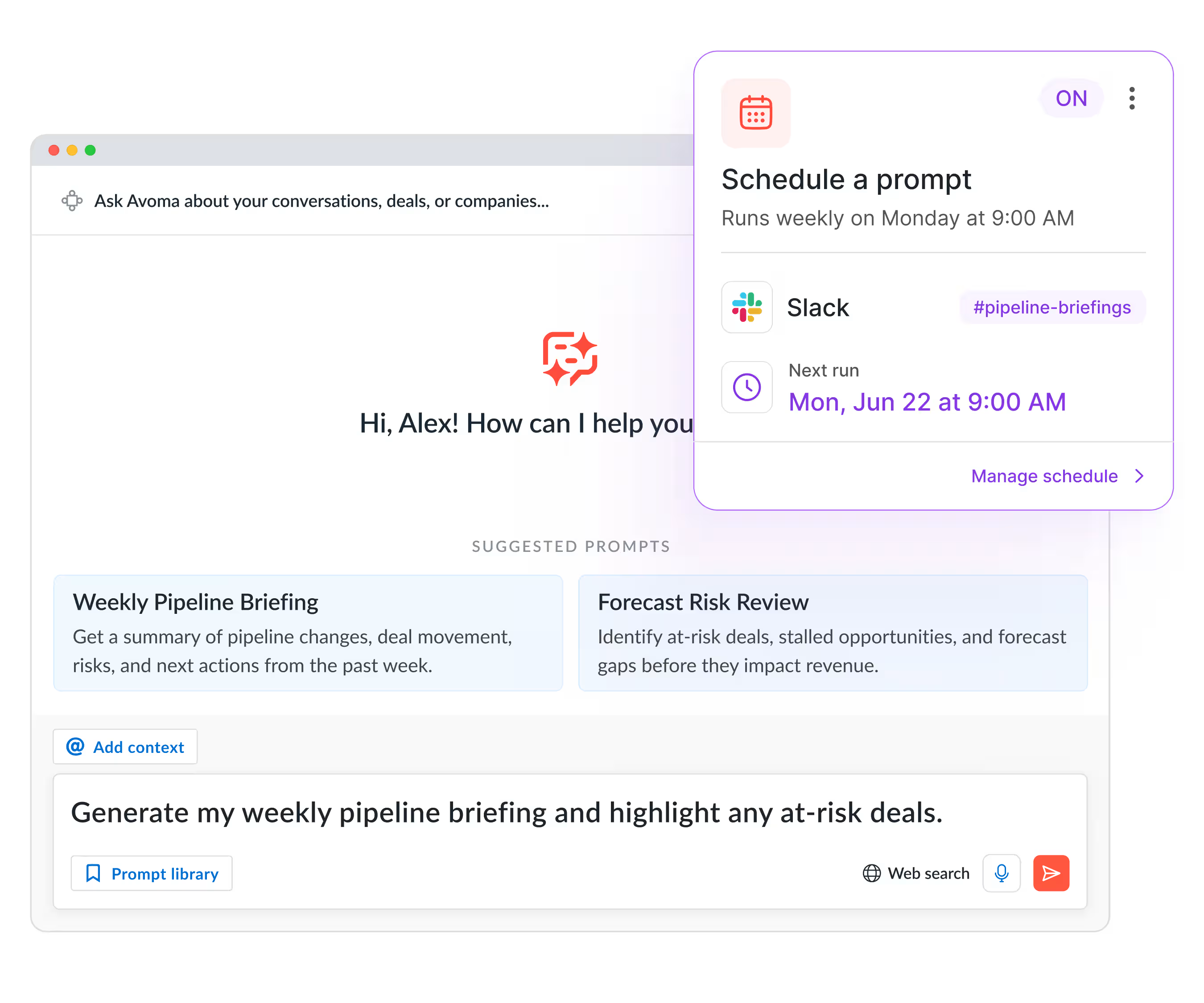
Weekly coaching recaps and objection reports often start with someone rerunning the same question. Scheduled Prompts now handles that recurring work.
Write your Ask Avoma query once, set a daily or weekly schedule, and receive the results in email, Slack, or Microsoft Teams. Use it to track team highlights, review coaching patterns, or follow changes in customer objections.
Get started: Open Ask Avoma, write your prompt, choose a schedule, and select your delivery channel.
During the free preview, organizations get 2 Scheduled Prompts per paid license. Organizations already on the credit system use their existing balance.
Get a pre-meeting brief with full context before your next meeting
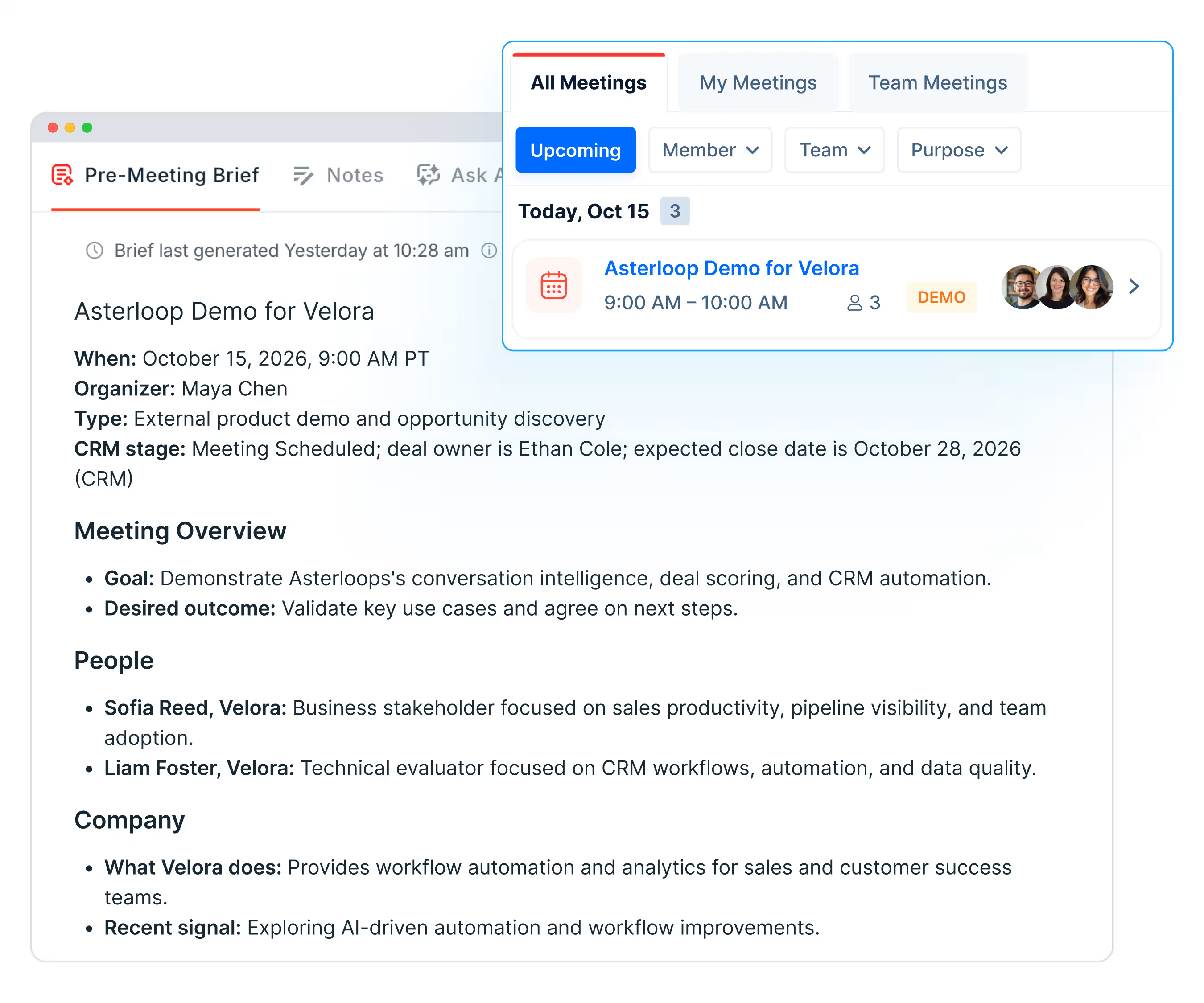
Preparing for a follow-up conversation can mean checking previous calls, email threads, and CRM records. Pre-Meeting Brief brings that context into a concise brief covering the history and what to discuss next.
Briefs draw from recent calls, emails, notes, and CRM data. Meetings with external participants also include web research with source links.
For private meetings where the organizer is the only participant from your company, the brief uses the organizer’s data. Otherwise, it draws on company-wide data.
Get started: Turn on Pre-Meeting Brief in settings.
Available to users on the Enterprise plan or with the Revenue Intelligence or Conversation Intelligence add-on.
Record in-person meetings and review coaching feedback on mobile
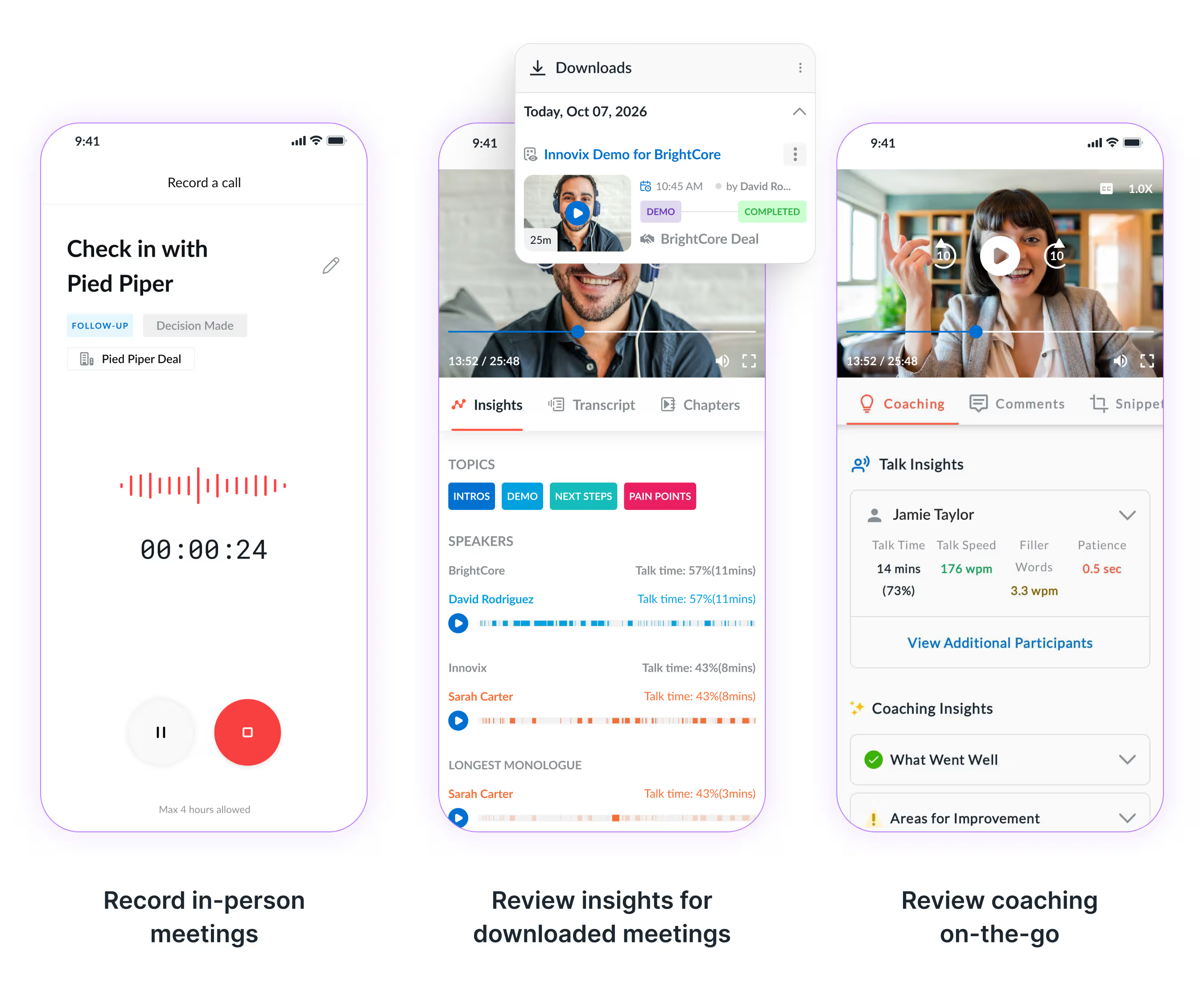
Avoma’s mobile apps now support more of the work around your conversations, from recording an in-person meeting to reviewing feedback without an internet connection.
- Record from the meeting page. Tap Record to capture an in-person meeting without a conference link. Avoma fills in the title, participants, and time, then attaches the audio to the meeting after recording ends. New privacy settings give you control over recording and uploading preferences.
- Review downloaded meetings offline. Access transcripts, notes, insights, snippets, and scorecards without an internet connection. Comments you add or edit offline sync after you reconnect.
- Check coaching feedback on your phone. The full Coaching tab includes talk time, talk speed, filler words, patience, and feedback on what went well and where to improve. Downloaded meeting data remains available offline.
Get started: Download or update Avoma on iOS or Android.
Map conversation insights to Salesforce Event and Task fields
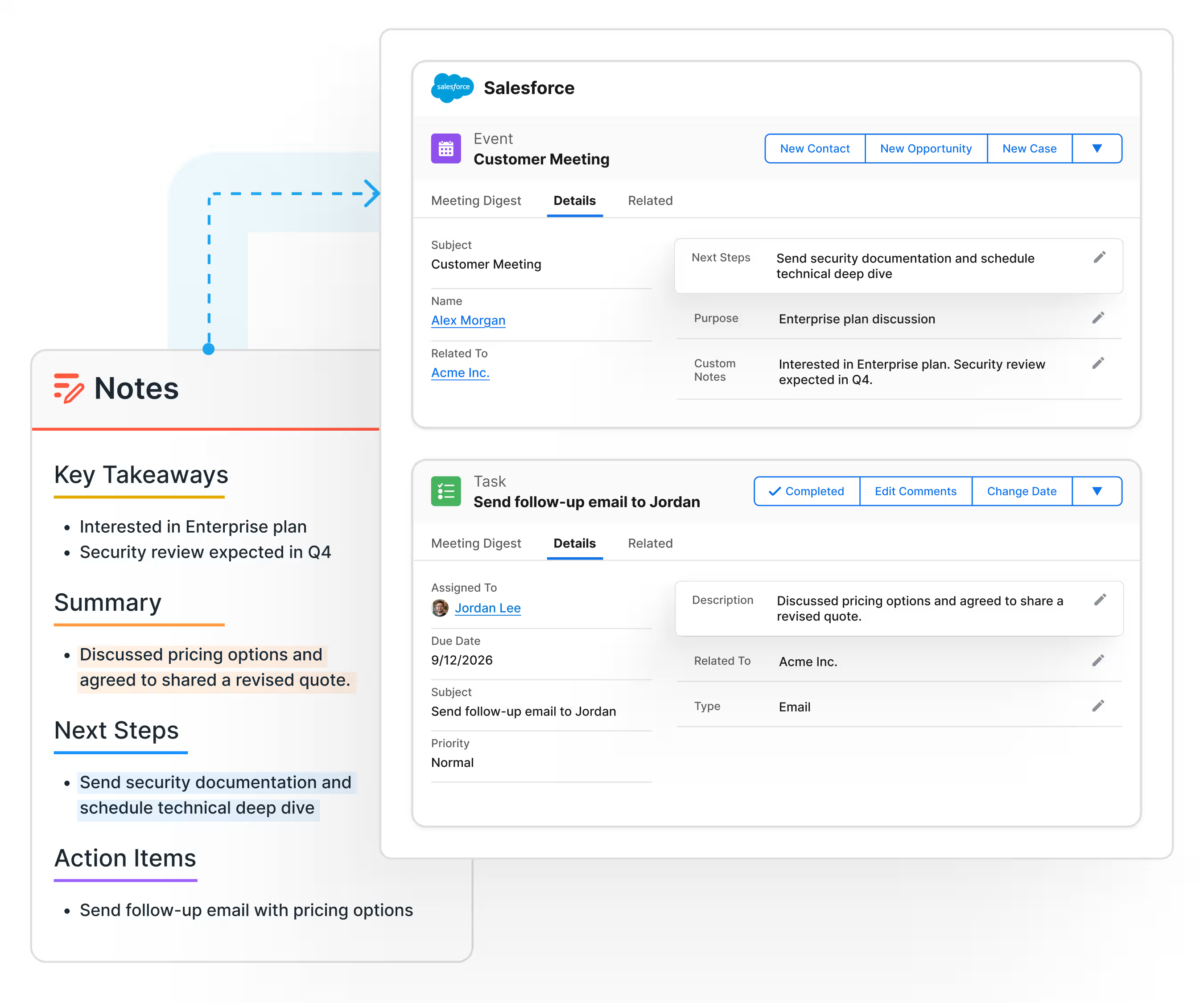
Meeting context becomes more useful in Salesforce when your team can use it in reports and workflows.
Admins can now map eligible Avoma Properties and Smart Topics to Salesforce Event and Task fields. After sync starts, linked records stay updated with the mapped meeting, deal, and account insights.
Get started: Go to CRM settings → Salesforce Configuration → Event Object or Task Object.
Task field mapping applies to meetings and calls. Emails can still sync to Tasks if configured, but they do not populate mapped Task fields.
Availability varies by use case. Your Customer Success Manager can explain the options for your plan.
Set custom weights to your most important AI scorecard questions
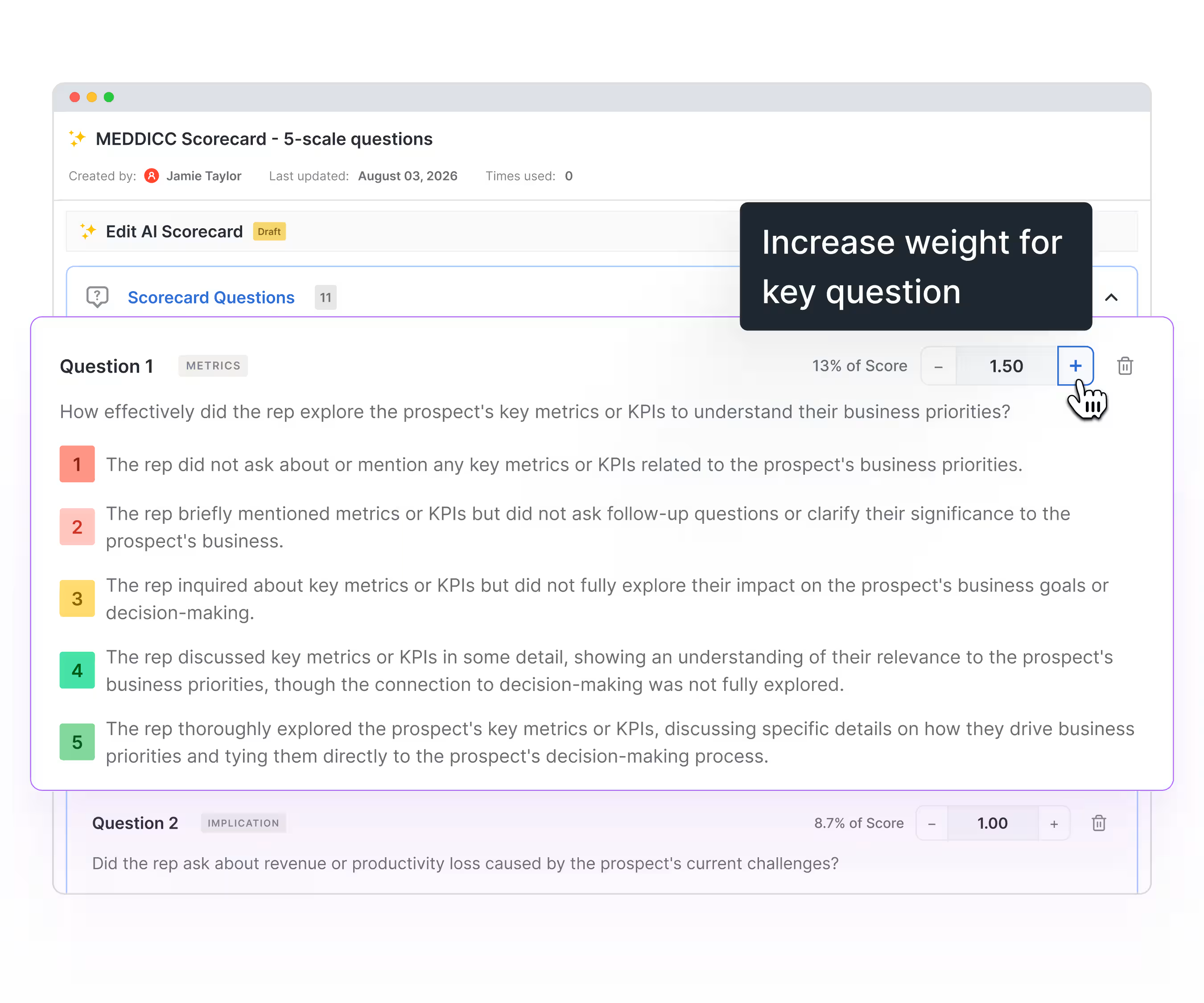
Equal weighting can understate the questions that matter most to your methodology. Weight Multipliers let you assign custom weights so those questions contribute more to the overall score.
Weights appear as a percentage of the total, making a question’s contribution clear. Custom weights work across AI and manual Scorecards for conversations and deals.
Get started: Open Scorecard Settings, select your Scorecard, and set the question weights.
Exclude team members who don’t submit forecasts
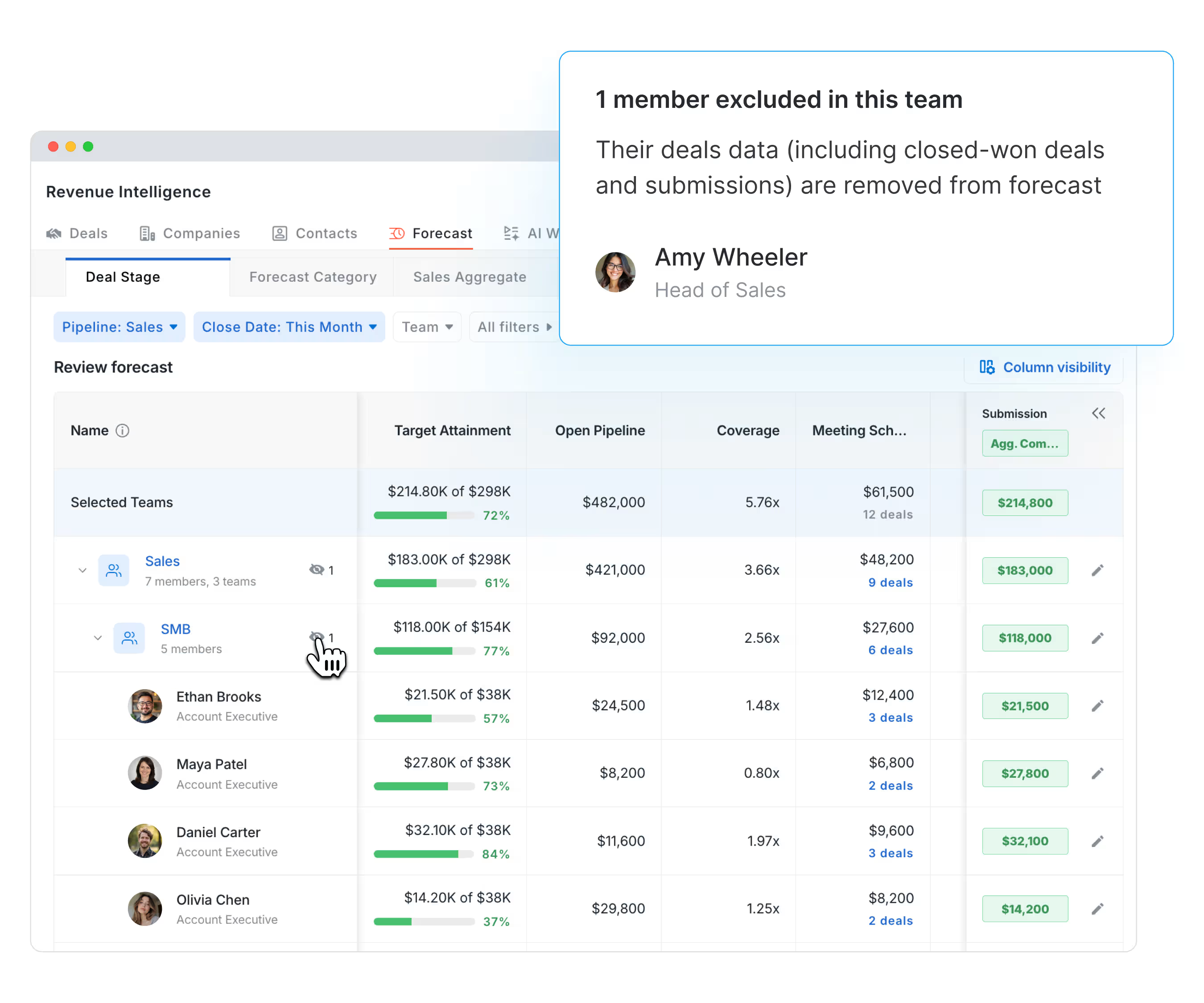
Selecting a team for forecasting previously included everyone on that team. Managers and admins can now exclude specific members, such as leaders or coaches who do not submit forecasts, while keeping the team selected.
Excluded members stay hidden from forecast submissions, target submissions, and the forecast homepage and related views. Your team structure stays intact while forecasting reflects the people who participate.
Get started: Go to CRM settings → Configure → Forecast and select the members to exclude.
Find key capabilities faster with cleaner navigation
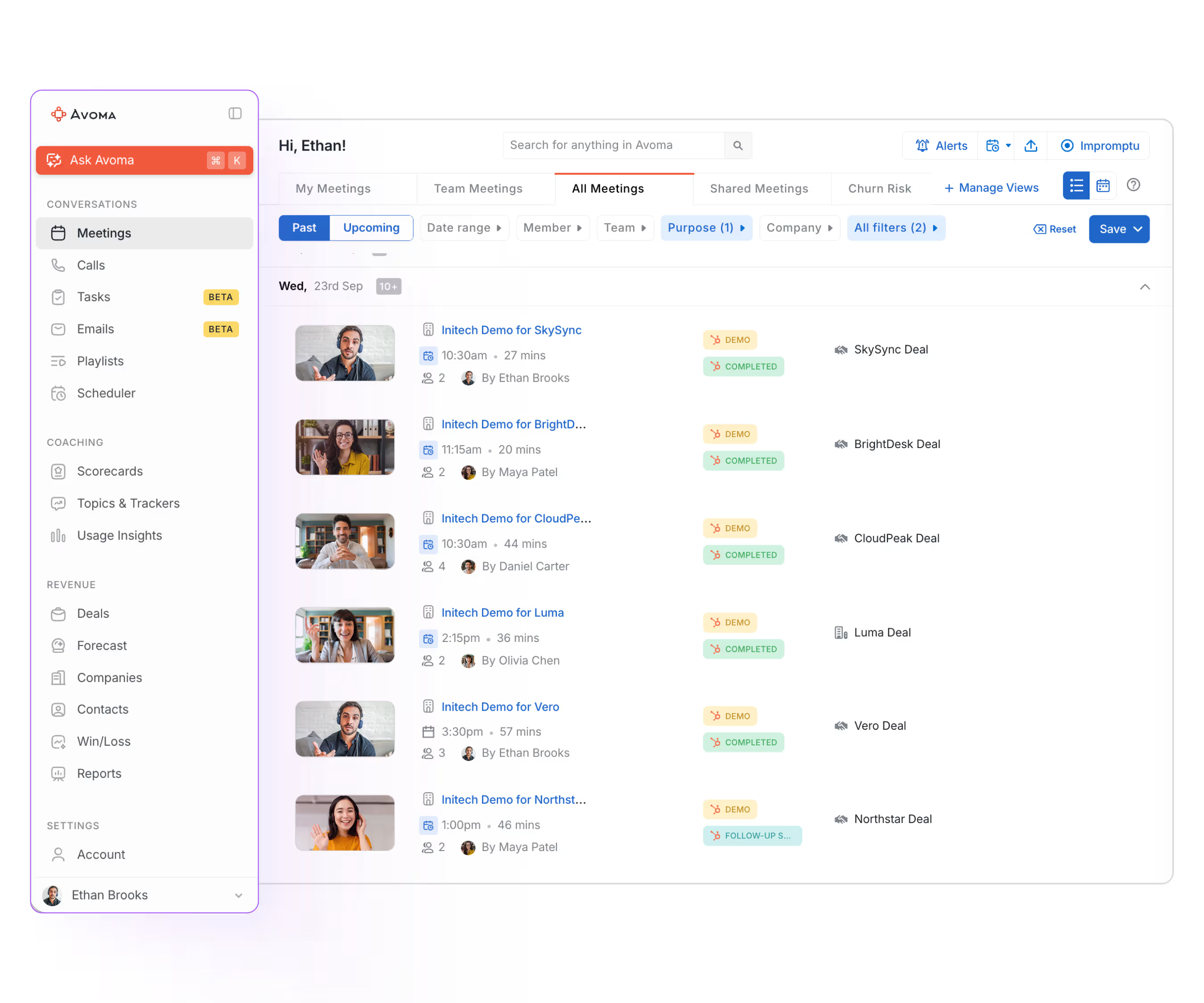
Avoma’s refreshed left navigation reorganizes key capabilities for quicker access as the product grows. The simpler layout makes it easier to move between the tools you use throughout the day.
We’d love to hear what you think of the new navigation.
Want help applying these updates to your team’s workflows? Contact your Avoma Customer Success Manager for a walkthrough, or schedule a demo.
Frequently Asked Questions


Dive into Our Latest
Avoma Insights.


What's stopping you from turning every conversation into actionable insights?


