
Avoma Insider — June 2026 Product update

Table of Contents:
The context you need before a call is never in one place. Ask Avoma now brings it there. This month also adds automation rules for CRM associations and org-wide recording management for Microsoft Teams admins.
Here are the latest product updates we shipped for June.
Ask Avoma got a stronger reasoning engine
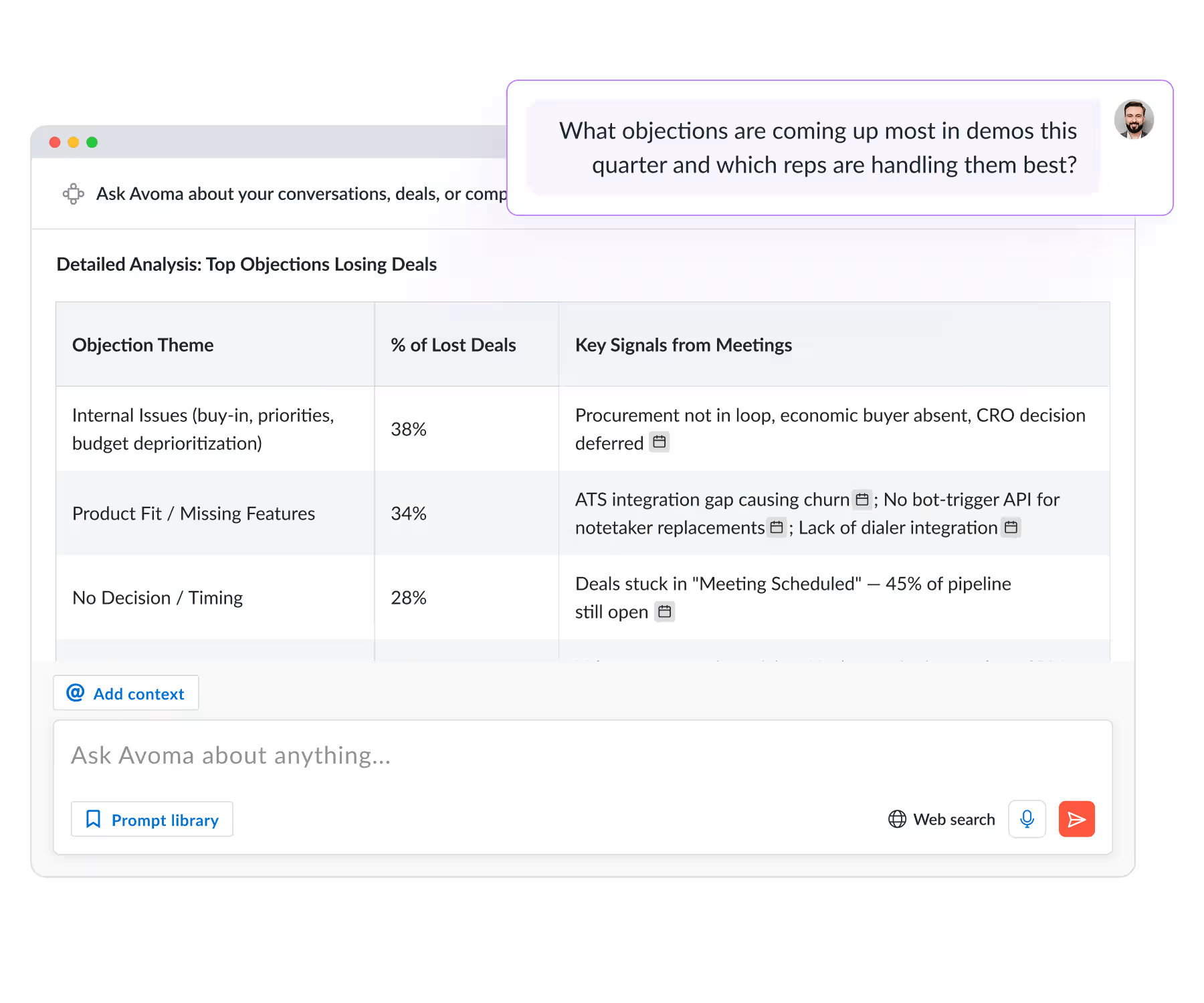
Ask Avoma now runs on a more powerful reasoning model. Responses are more accurate and relevant. It handles longer sessions without losing context and responds faster.
If you use Ask Avoma for deal reviews, QBR prep, or coaching analysis, you will notice the difference on complex, multi-part questions. If you are looking for a starting point, the Ask Avoma Prompt Handbook covers the prompts sales and CS teams use most.
Pre-call prep from the upcoming meeting view
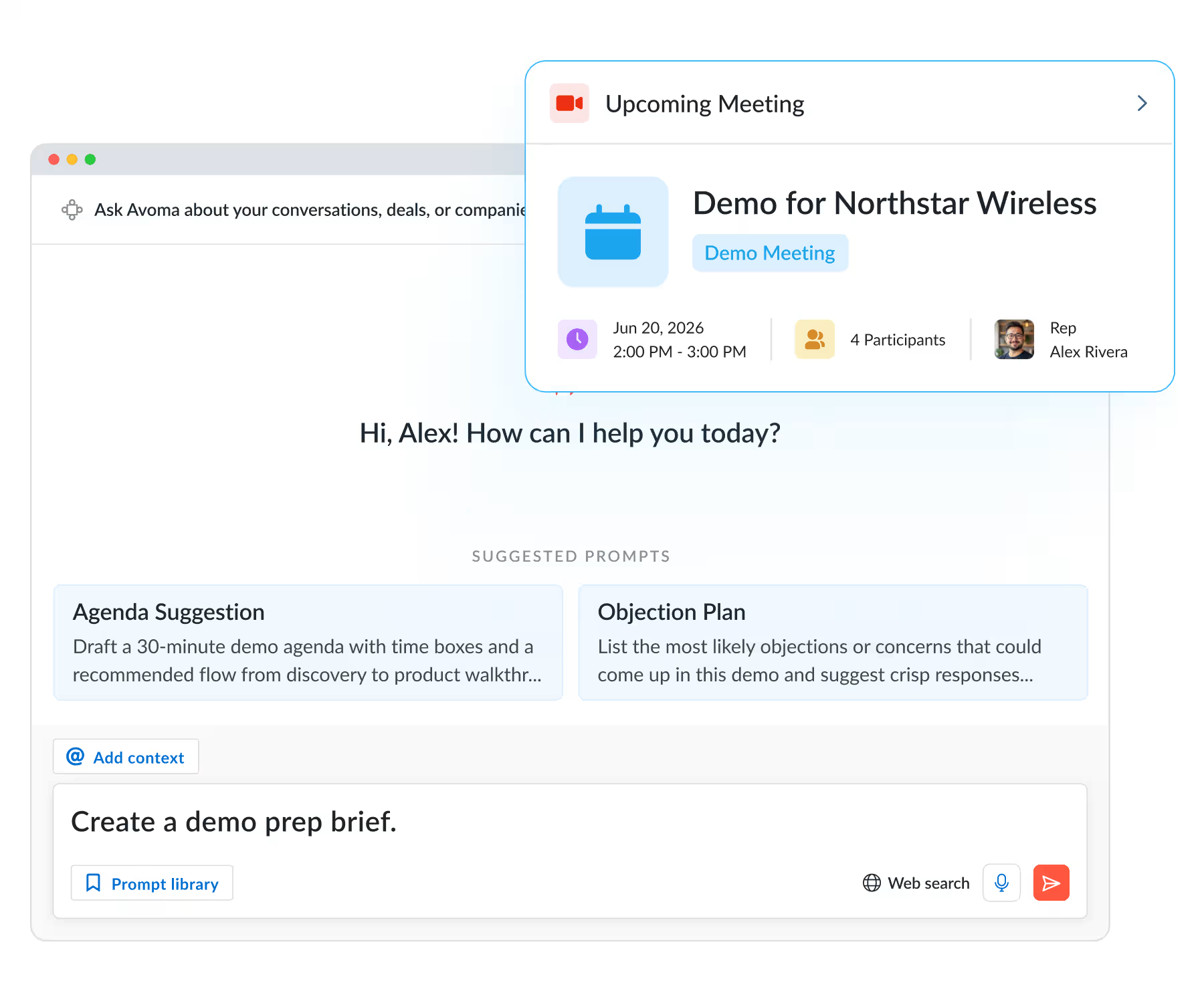
Prepping for a call has always meant jumping between the account, deal view, and past meetings to piece together where things stand.
Now you can open Ask Avoma directly from the upcoming meeting and pull previous meetings, emails, and deal signals in one place.
How to use it: Go to Upcoming Meeting → Click the Ask Avoma icon → Submit your query.
Ask Avoma can find and summarize your playlists
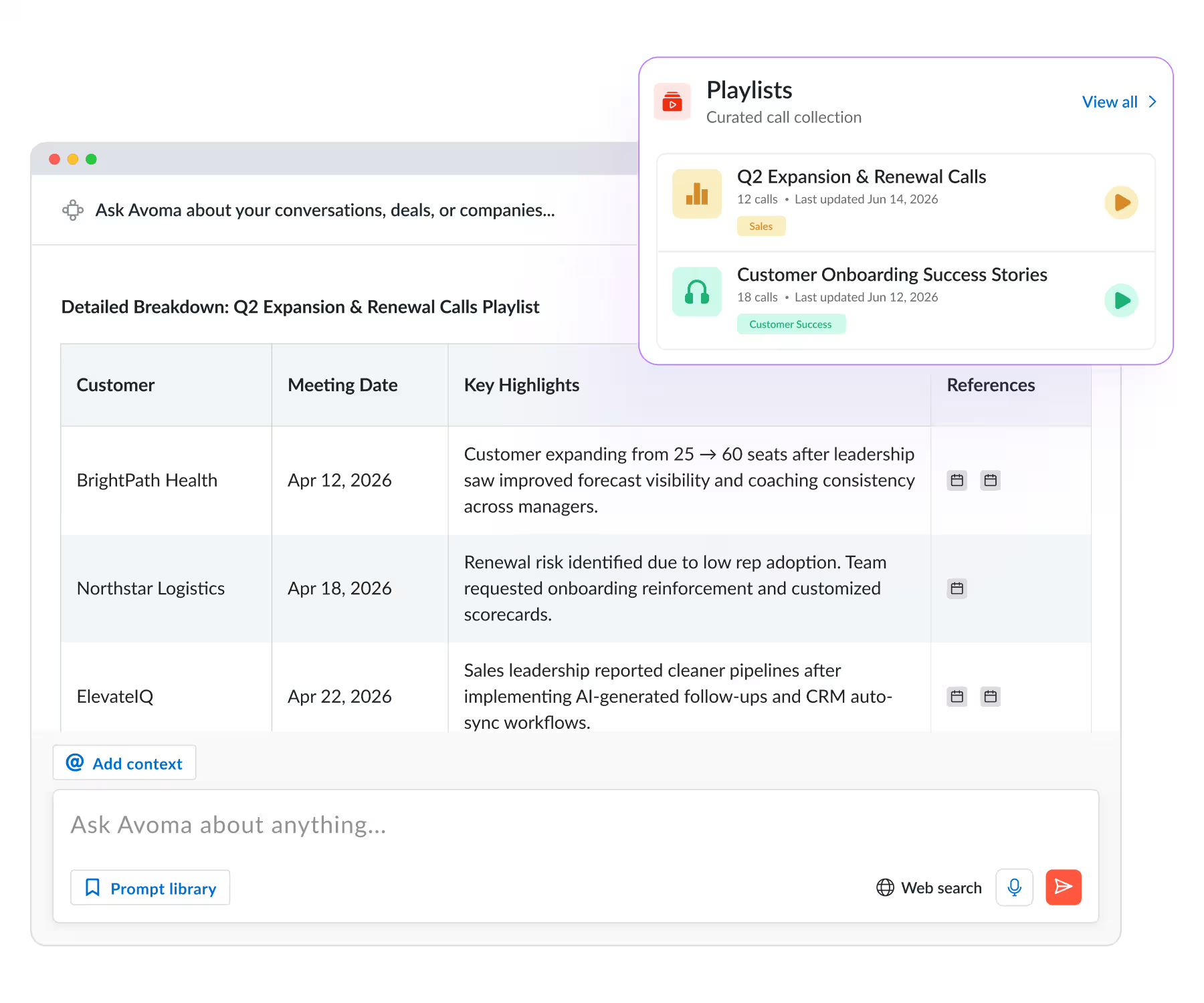
Reviewing a playlist meant opening it and going through clips one by one.
Now Ask Avoma can find any playlist by name, creator, or shared link and surface contextual summaries. It synthesizes patterns and key takeaways across the full playlist, not just individual meetings.
How to use it: Go to Ask Avoma → Search for the playlist by name or paste a shared link.
Teams using conversation intelligence for enablement will find this useful when reviewing call libraries or building rep scorecards.
Automate which meetings get linked to your CRM
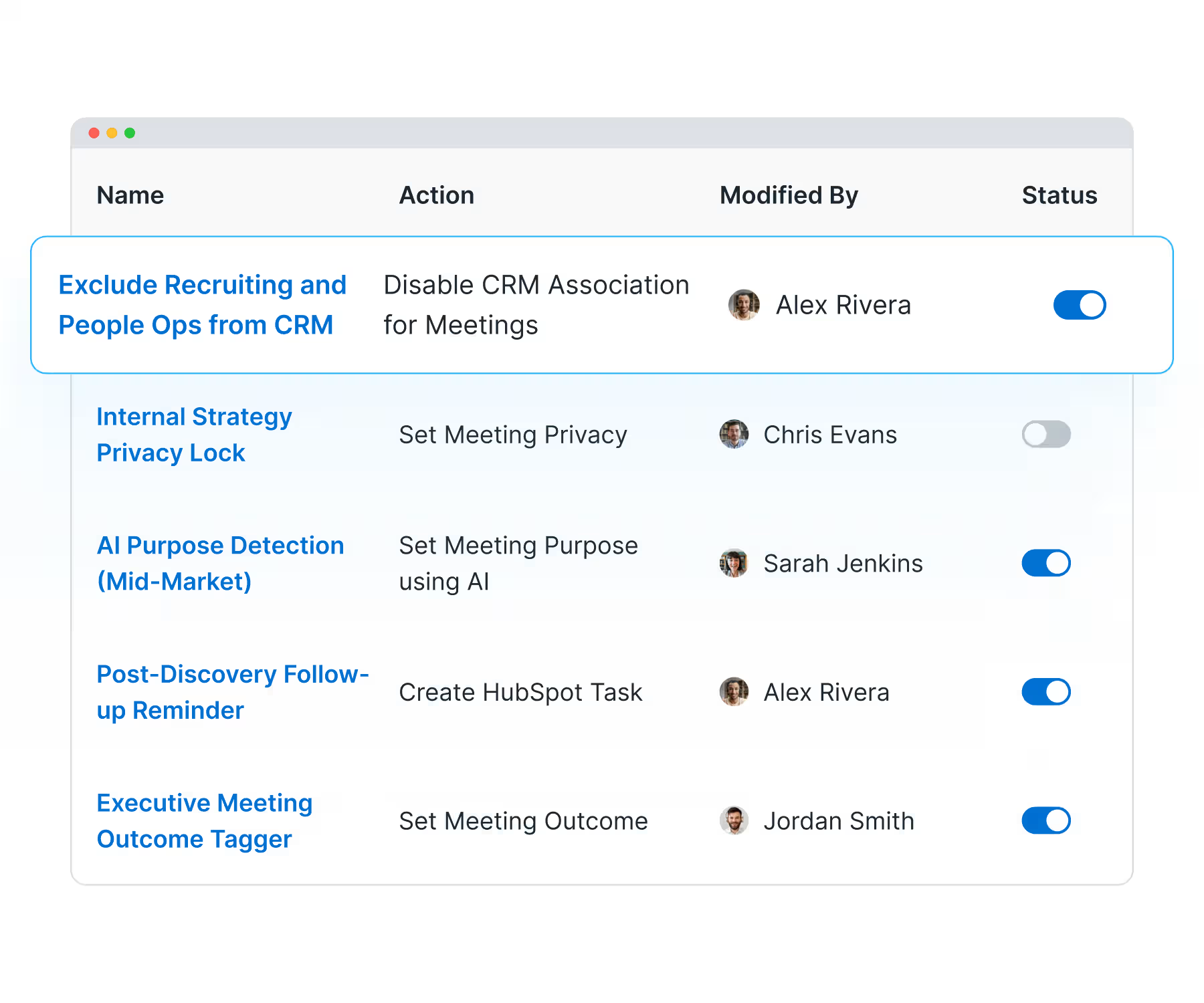
Without rules in place, internal syncs, one-on-ones, and team standups end up linked to CRM records alongside revenue calls. That creates noise for anyone running deal reviews or pipeline reporting.
CRM associations can now be configured with Automations. Set rules based on team, meeting purpose, outcome, title, or other criteria, and only relevant revenue calls get linked to the right CRM records.
How to set it up: Go to Settings → Automations → Add an "Enable/Disable CRM Association" action to a new or existing rule.
For RevOps teams who depend on CRM data quality for accurate forecasting, this runs through automation, not behavior change.
Org-wide Microsoft Teams recording from one place
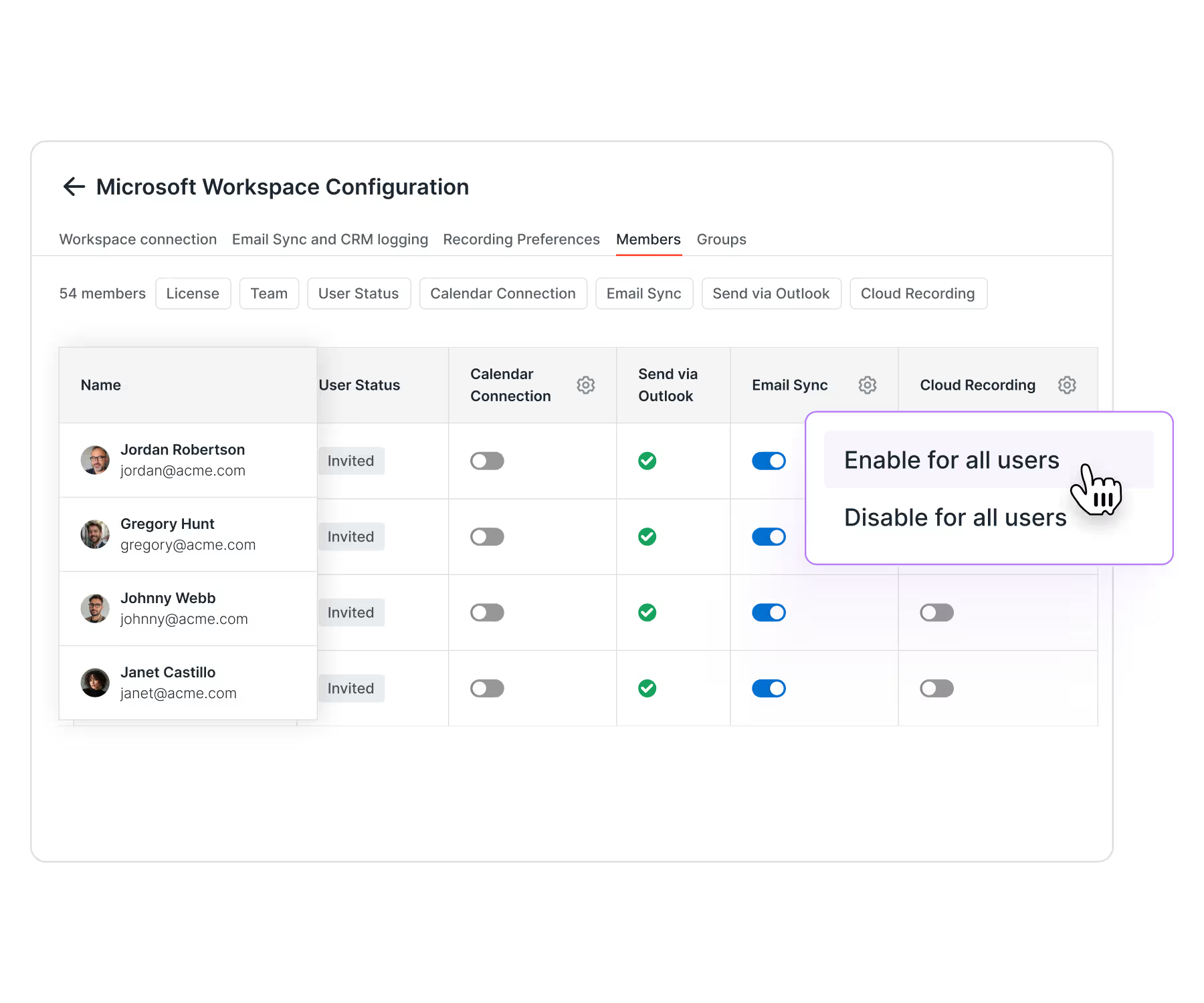
Reps no longer need to connect their Microsoft account individually. Admins can now connect Microsoft Workspace once and control cloud recording preferences for the whole organization, including bulk updates by team or group.
Choose between native Teams cloud recording or the Avoma bot, and manage recording preferences, bot settings, and team-level configurations from a single view.
How to set it up: Go to Settings → Integrations → Microsoft Workspace to connect and configure org-wide recording. For IT admins, see the Teams Access Policy setup guide to enable central recording control.
Missed last month? Catch up on the April 2026 product updates or the March 2026 updates.
If you want to see these workflows on your own calls and deals, schedule a demo and our product experts will walk you through the platform.
Frequently Asked Questions




What's stopping you from turning every conversation into actionable insights?


